Showing posts with label git. Show all posts

Friday, September 6, 2024

My Thoughts on CodeCommit Deprecation

AWS's recent fait accompli deprecation of CodeCommit and six other services was a shock to me.*

Not because CodeCommit was a particularly good product — it wasn't — but because it could have been one with some investment. While there are many Git repository services in the world, CodeCommit was part of the AWS ecosystem, giving it some unique capabilities. Capabilites that AWS never exploited.

CodeCommit was released at re:Invent 2014, and became generally available the following summer. At some point after that, I moved a couple of repositories that I'd been self-hosting. At the time, GitHub didn't support private repositories, and I was happy to pay AWS a few cents a month to ensure that they were available anywhere and safely backed-up.

The first thing I noticed about CodeCommit was that it was painfully slow. To put some numbers on that: an HTTPS clone of my appenders library (~10,000 objects, 2.6 MiB) from GitHub takes 0.917 seconds. From the identical repository on CodeCommit, the time is 7.407 seconds. My website, which has fewer objects but more bytes, takes 22 seconds. While you might not be frequently cloning repositories, pulls and pushes are also much slower than with GitHub.

I was also annoyed that I had to set up an association between my private key and a CodeCommit user: I have several machines, each with their own private key. Making this more annoying, the key associations don't provide any indication of which key they represent; it would have been nice to see the associated public key, or even a key fingerprint.

But as I learned later, I didn't need to make those associations. CodeCommit has a git credential helper that generates temporary credentials based on IAM identity. It's not terribly well documented, and an experienced Git user probably wouldn't look at the documentation anyway (at least, I didn't), especially since the “helpful hints” shown after creating a repository make no mention of it.

Highlighting this one feature would have made CodeCommit a far more useful tool than it was. For example, a CI/CD pipeline running on AWS infrastructure wouldn't need to store credentials to access the source repository. But there's no suggestion that users could do that, even in AWS's own CodeBuild user guide (which gives examples for GitHub, BitBucket, and GitLab).

Or, as an example closer to my own needs: five years ago I submitted an issue to the “CloudFormation roadmap”, asking for the ability to retrieve templates from arbitrary HTTPS URLs (and, based on the stars and comments, this seems to be a common wish). While I can understand reluctance to allow generic public repository URLs as a security risk (somebody, somewhere, would check in something they shouldn't), CodeCommit and role-based credentials would allow CloudFormation to easily support private templates. But with CodeCommit's deprecation, that's a lost cause.

Historically, AWS has made a big deal of “dog-fooding” their services; I don't think this happened with CodeCommit. If you want to download SDK source, or any other AWS-provided open source, you go to GitHub. Although, given how slow CodeCommit is, maybe we should be thankful; something like the Java SDK already takes an enormously long time to download. But without AWS using CodeCommit internally, there was no pressure to improve. And no serendipitous “hey, we can do X!” moments.

So what? Anybody who signed up for CodeCommit can still use it, right? And perhaps it was just hubris on AWS's part to compete with companies that already produced developer tooling and the “Code” suite should never have been released in the first place.

But for me, it's yet another sign that AWS has moved away from “now go build.” And that was what attracted me to AWS in the first place.


* “Fait accompli” because they did not announce their plans in advance, instead using blog posts like this one, which was released after they'd already blocked new users.

Thursday, April 9, 2020

Stupid Git Tricks: Interactive Rebase

I like to provide a nice, clean history in my pull requests. Reviewers should be able to follow each commit, and see how the functionality is built up. No extranneous commits. Nothing out of order. Everything looking like one smooth path from idea to implementation.

Unfortunately, my development process doesn't quite work that way. For one thing, I commit (and push) frequently — as in every 10-15 minutes when I'm making lots of changes. For another, I'll often realize that there's a small change that should have been introduced several commits previously. For these, and other reasons, I find git rebase -i invaluable.

OK, some of you are probably outraged: “you're changing history!” Settle down. This is for development branches, not master. And I'm willing to adapt in a team setting: if my team members want to see messy commit histories in a pull request, I'm OK with giving that to them. But only if they squash merges.

So, here are a few of the ways that I change history. You're free to avoid them.

Combining commits

Here's one morning's commit history:

commit 6aefd6989ba7712cb047d661b68d34c888badea4 (HEAD -> dev-writing_log4j2, origin/dev-writing_log4j2)
Author: Me 
Date:   Sun Apr 5 12:13:19 2020 -0400

    checkpoint: content updates

...

commit e8503f01c72618709ac5231a78cfa8549fcfb7b3
Author: Me 
Date:   Sun Apr 5 09:22:51 2020 -0400

    checkpoint: content updates

commit 8bdb788421c56cb0defe73ce87b9e1ffe4266b0c
Author: Me 
Date:   Sat Apr 4 13:57:27 2020 -0400

    add reference to sample project

Three hours of changes, split up over eight commits, with regular pushes so I wouldn't lose work if my SSD picked today to fail. I really don't want to see all of those in my history.

The solution is to squash those commits down using an interactive rebase:

git rebase -i 8bdb788421c56cb0defe73ce87b9e1ffe4266b0c

When I run this, it starts my editor and shows me the following:

pick e8503f0 checkpoint: content updates
pick f71ddca checkpoint: content updates
pick a8d7a25 checkpoint: content updates
pick 6b87b9b checkpoint: content updates
pick 556a346 checkpoint: content updates
pick 466dd26 checkpoint: content updates
pick 0034657 checkpoint: content updates
pick 6aefd69 checkpoint: content updates

# Rebase 8bdb788..6aefd69 onto 8bdb788 (8 commands)
#
# Commands:
# p, pick = use commit
# r, reword = use commit, but edit the commit message
# e, edit = use commit, but stop for amending
# s, squash = use commit, but meld into previous commit
# f, fixup = like "squash", but discard this commit's log message
# x, exec = run command (the rest of the line) using shell
# d, drop = remove commit
#
# These lines can be re-ordered; they are executed from top to bottom.
#
# If you remove a line here THAT COMMIT WILL BE LOST.
#
# However, if you remove everything, the rebase will be aborted.
#
# Note that empty commits are commented out

A list of commits, instructions on how to work with them, and a few warnings about what happens if I do something dumb. To squash these commits I update all but the first to be a “fixup”:

pick e8503f0 checkpoint: content updates
f f71ddca checkpoint: content updates
f a8d7a25 checkpoint: content updates
f 6b87b9b checkpoint: content updates
f 556a346 checkpoint: content updates
f 466dd26 checkpoint: content updates
f 0034657 checkpoint: content updates
f 6aefd69 checkpoint: content updates

Save this and exit the editor, and Git applies all of those changes:

Successfully rebased and updated refs/heads/dev-writing_log4j2.

And now when I look at my history, this is what I see:

commit 51f5130422b524603d6249ef40e012aeecde5422 (HEAD -> dev-writing_log4j2)
Author: Me 
Date:   Sun Apr 5 09:22:51 2020 -0400

    checkpoint: content updates

commit 8bdb788421c56cb0defe73ce87b9e1ffe4266b0c
Author: Me 
Date:   Sat Apr 4 13:57:27 2020 -0400

    add reference to sample project

Note that the last commit hash has changed, and my working HEAD no longer refers to the origin branch. This means that I'm going to need to force-push these changes. But before that, there's one more thing that I want to do:

git commit --amend -m "content updates" --reset-author

This command does two things. First, it updates my commit message: this is no longer a “checkpoint” commit. The second thing it does is update the basic commit info, in this case just the timestamp. If you looked closely at the history above, you saw that all of the commits had been marked with the timestamp of the first; --reset-author makes the history more closely reflect what actually happened (it can also be used to pretend that other people didn't contribute to the commit, but I'll assume you're more honorable than that).

Now the log looks like this:

commit fdef5d6f0a19218784b87a596322816347db2232 (HEAD -> dev-writing_log4j2)
Author: Me 
Date:   Sun Apr 5 12:22:46 2020 -0400

    content updates

commit 8bdb788421c56cb0defe73ce87b9e1ffe4266b0c
Author: Me 
Date:   Sat Apr 4 13:57:27 2020 -0400

    add reference to sample project

Which is what I want to see, so time to force-push and overwrite the previous chain of commits:

> git push -f
Counting objects: 4, done.
Delta compression using up to 4 threads.
Compressing objects: 100% (4/4), done.
Writing objects: 100% (4/4), 4.52 KiB | 2.26 MiB/s, done.
Total 4 (delta 3), reused 0 (delta 0)
To ssh://git-codecommit.us-east-1.amazonaws.com/v1/repos/Website
 + 6aefd69...fdef5d6 dev-writing_log4j2 -> dev-writing_log4j2 (forced update)

I should note here that the previous chain of commits still exists in your repository. If, for some reason, you want to retrieve them, you can explicitly check-out the former head commit:

git checkout -b recovery 6aefd6989ba7712cb047d661b68d34c888badea4

Of course, if you close your terminal window, you might not find that commit hash again, so if you're worried you should write it down it somewhere. When I'm making a large set of changes, I'll often create a temporary branch from the one that's being rebased, just in case (unfortunately, I often forget to switch back to the branch that I want to rebase).

Re-ordering commits

Especially at the start of a new project, I might jump around and edit several different things, resulting in a messy commit history:

pick fc46b5b update docs
pick 0f734fb minor change to feature X
pick 2233c01 update docs
pick fe56f59 another change to feature X
pick d3fb025 related change to feature Y
pick aec87c1 update docs
pick 66ef266 something unrelated to either X or Y
pick 96179b3 changing Y
pick 904a779 update docs

Interactive rebase allows you to move commits around, and then optionally squash those moved commits:

pick fc46b5b update docs
f 2233c01 update docs
f aec87c1 update docs
f 904a779 update docs
pick 0f734fb minor change to feature X
f fe56f59 another change to feature X
pick d3fb025 related change to feature Y
f 96179b3 changing Y
pick 66ef266 something unrelated to either X or Y

There are a couple of gotchas when you do this. First, you need to make sure that you're not changing both X and Y in the same commit. If you do, you can still squash the commits together, but it's pointless to try to track the work in each feature separately.

Second, make sure that you preserve order: in my example, commit 0f734fb happened before fe56f59 the interactive rebase needs to keep them in this order. If you don't, you can end up with merge conflicts that are challenging to resolve.

Lastly, and most important, make sure you have the same number of commits that you started with. If you accidentally delete a commit rather than move it, you will lose that work. For this reason, I tend to use interactive rebase on small pieces of my history, perhaps making several passes over it.

Editing commits

When writing my article about Log4J2 appenders, I saw a comment that I wanted to change in the accompanying example code. Unfortunately, it wasn't the HEAD commit:

commit 8007214ef232abf528baf2968162b51dcd2c09ca
Author: Me 
Date:   Sat Apr 4 09:34:53 2020 -0400

    README

commit 38c610db6a02747d7017dff0a9c2b7ed290e30e1
Author: Me 
Date:   Sat Apr 4 08:34:12 2020 -0400

    stage-10: add tests

commit 5dfd79e3f879038e915fa04c83f8eb9b0f695e35
Author: Me 
Date:   Tue Mar 31 08:38:17 2020 -0400

    stage-9: implement a lookup

There are two ways that I could have approached this. The first would be to create a new commit and then reorder it and turn it into a fixup. The second is to edit the file as part of an interactive rebase, by marking the commit with an "e":

pick 5dfd79e stage-9: implement a lookup
e 38c610d stage-10: add tests
pick 8007214 README

When I do this, git works through the commits, and stops when it reaches the marked one:

Stopped at 38c610d...  stage-10: add tests
You can amend the commit now, with

  git commit --amend 

Once you are satisfied with your changes, run

  git rebase --continue

I can now edit any files in my working tree (they don't have to be part of the original commit). Once I'm done, I do a git add for changed files, followed by both git commit --amend and git rebase --continue. After the rebase completes, I can force-push the changes.

Beware that editing commits can introduce merge conflicts: if a later commit touches the same code, you'll have to stop and resolve the conflict. This is more likely when you edit early commits, or when the edits are wide-ranging. It is far less likely for changes like comments.

Cherry-picking into the middle of a branch

You may be familiar with git cherry-pick, which takes an arbitrary commit and puts it at the HEAD of your current branch. This can be useful when two teams are working on the same general area of the codebase: often one team will incidentally do something that the other team finds valuable.

Interactive rebase is like cherry-picking on steroids: you can insert a commit anywhere in your commit tree. To be honest, I find this more risky than beneficial; instead I would cherry-pick to HEAD and then perhaps use an interactive rebase to move the commit to where it “belongs.” But in the interest of “stupid git tricks,” here we go.

Let's say that you've been working on a branch and have been making changes, starting with changes to the build scripts. Then you talk with a colleague, and learn that she has also made changes to the build. You could cherry-pick her change to the end of your branch and use it moving forward, but you're somewhat OCD and want to keep the build changes together. So you fire up git rebase -i and add your colleague's commit as a new “pick”:

pick ffc954d build scripts
p 1438a13d11d6001de876a034f434a050c09b587d
pick b497403 update 1
pick 18e8415 update 2
pick 33a4e9d update 3

Now when you do a git log, you see something like this:

... skipping two commits

commit 7b62acb8d9100f379a0d43e3227c36ae91c1edd9
Author: Me 
Date:   Fri Mar 27 10:11:01 2020 -0400

    update 1

commit c579ed88403354faed83213da63d4546c5aa13b5
Author: Someone Else 
Date:   Sun Jan 5 09:30:14 2020 -0500

    some build changes

commit ffc954dc41555282ece3e2b7a0197472c0af9f11
Author: Me 
Date:   Mon Jan 6 08:02:30 2020 -0500

    build scripts

Note that the commit hash has changed: from 1438a13d to c579ed88. This is because it's now part of a new branch: a commit hash is based not merely on the content of the commit, but also the commit chain that it's a part of. However, the committer's name and the commit date are unchanged.

Wrapping up: a plea for clean commit histories

A standard Git merge, by preserving the chains of commits that led to the merge point, is both incredibly useful and incredibly annoying. It's useful, in that you can move along the original branch to understand the context of a commit. It's annoying, in that your first view of the log shows the commits intermingled and ordered by date, completely removing context.

I find messy histories to be similar. Software development doesn't happen in a clean, orderly fashion: developers often attach a problem from multiple sides at once. And that can result in commit histories that jump around: instead of “fix foo” you have “add test for bar”, followed by “make test work”, followed by an endless string of “no, really, this time everything works”.

Maybe you find that informative. If not, do your future self (and your coworkers) a favor and clean it up before making it part of the permanent record.

Saturday, February 23, 2019

AWS CodeCommit: Identifying Your Public Key

I use AWS CodeCommit to hold the work-in-progress articles for this blog. It's free, it's private, and it's not living on a disk drive in my house.

To access my repositories, I use SSH private key authentication. Unlike GitHub, CodeCommit doesn't just let you attach a public key to a repository. Instead, you associate a public key with a user token, and must use that user token to access the repository. That's not too onerous, because you can put the token in your .ssh/config:

Host git-codecommit.*.amazonaws.com
    User APKANOTMYREALTOKENXX

Today, when pushing up some changes, I got a "permission denied" message. After a few minutes of cursing, and wondering if my AWS account had been hacked, I realized that I had changed my SSH config on my laptop, then copied it to my desktop. So CodeCommit was using the wrong user token.

Should be easy to solve: I just go to my IAM user page, and find the correct token for my SSH public key. But when I did that, all I saw were a list of tokens and dates; no descriptions. OK no problem, I look at the SSH public keys for each token (there aren't many) and see which corresponds to the on that machine. I opened the first, and it looked like this:

-----BEGIN PUBLIC KEY-----
MIIBIjANBgkqhkiG9w0BAQEFAAOCAQ8AMIIBCgKCAQEAyB4VyUpaTgHjjBMTet4A
blah blah blah
-----END PUBLIC KEY-----

Which looks nothing at all like the key that I uploaded. A little more cursing, and a quick Google, and I learned that it was in PEM format, rather than the OpenSSH format of the keys in my .ssh directory. A little more Googling turned up this command, to transform the file I had into the file I needed:

ssh-keygen -f .ssh/id_rsa.pub -e -m pem

I'm posting this for two reasons: first, if you (the reader) ever get a "permission denied" for your CodeCommit repository, Google might bring you here without too much cursing. Second, if an AWS project manager sees this (it's happened before): please let us add descriptions to our CodeCommit keys!

Friday, November 11, 2016

Git Behind The Curtain: what happens when you commit, branch, and merge

This is the script for a talk that I'm planning to give tomorrow at BarCamp Philly. The talk is a “live committing” exercise, and this post contains all the information needed to follow along. With some links to relevant source material and minus my pauses, typos, and attempts at humor.


Object Management

I think the first thing to understand about Git is that it's not strictly a source control system; it's more like a versioned filesystem that happens to be good at source control. Traditionally, source control systems focused on the evolution of files. For example, RCS (and its successor CVS) maintain a separate file in the repository for each source file; these repository files hold the entire history of the file, as a sequence of diffs that allow the tool to reconstruct any version. Subversion applies the idea of diffs to the entire repository, allowing it to track files as they move between directories.

Git takes a different approach: rather than constructing the state of the repository via diffs, it maintains snapshots of the repository and constructs diffs from those (if you don't believe this, read on). This allows very efficient comparisons between any two points in history, but does consume more disk space. I think the key insight is not just that disk is cheap and programmer time expensive, but that real-world software projects don't have a lot of large files, and those files don't experience a lot of churn.

To see Git in action, we'll create a temporary directory, initialize it as a repository, and create a couple of files. I should note here that I'm using bash on Linux; if you're running Windows you're on your own re commands. Anything that starts with “>” is a command that I typed; anything else is the response from the system.

> mkdir /tmp/$$

> cd /tmp/$$

> git init
Initialized empty Git repository in /tmp/13914/.git/

> touch foo.txt

> mkdir bar

> touch bar/baz.txt

> git add *

> git commit -m "initial revision"
[master (root-commit) 37a649d] initial revision
 2 files changed, 0 insertions(+), 0 deletions(-)
 create mode 100644 bar/baz.txt
 create mode 100644 foo.txt

Running git log shows you this commit, identified by its SHA-1 hash.

> git log
commit 37a649dd6dec75cd68a2c3dfb7fa2948a0d3426e
Author: Keith Gregory 
Date:   Thu Nov 3 09:20:29 2016 -0400

    initial revision

What you might not realize is that a commit is a physical object in the Git repository, and the SHA-1 hash is actually the hash of its contents. Git has several different types of objects, and each object is uniquely identified by the SHA-1 hash of its contents. Git stores these objects under the directory .git/objects, and the find command will help you explore this directory. Here I sort the results by timestamp and then filename, to simplify tracing the changes to the repository.

> find .git/objects -type f -ls | sort -k 10,11
13369623    4 -r--r--r--   1 kgregory kgregory       82 Nov  3 09:20 .git/objects/2d/2de60b0620e7ac574fa8050997a48efa469f5d
13369612    4 -r--r--r--   1 kgregory kgregory       52 Nov  3 09:20 .git/objects/34/707b133d819e3505b31c17fe67b1c6eacda817
13369637    4 -r--r--r--   1 kgregory kgregory      137 Nov  3 09:20 .git/objects/37/a649dd6dec75cd68a2c3dfb7fa2948a0d3426e
13369609    4 -r--r--r--   1 kgregory kgregory       15 Nov  3 09:20 .git/objects/e6/9de29bb2d1d6434b8b29ae775ad8c2e48c5391

OK, one commit created four objects. To understand what they are, it helps to have a picture:
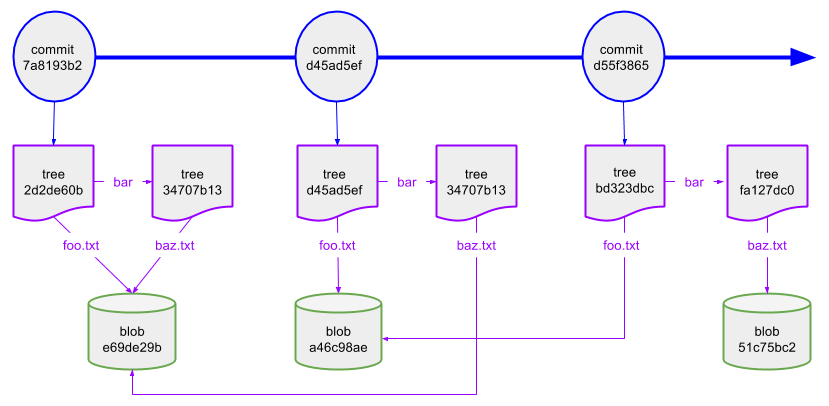
Each commit represents a snapshot of the project: from the commit you can access all of the files and directories in the project as they appeared at the time of the commit. Each commit contains three pieces of information: metadata about the commit (who made it, when it happened, and the message), a list of parent commits (which is empty for the first commit but has at least one entry for every other commit), and a reference to the “tree” object holding the root of the project directory.

Tree objects are like directories in a filesystem: they contain a list of names and references to the content for each name. In the case of Git, a name may either reference another tree object (in this example, the “bar” sub-directory), or a “blob” object that holds the content of a regular file.

As I said above, an object's SHA-1 is built from the object's content. That's why we have two files in the project but only one blob: because they're both empty files, the content is identical and therefore the SHA-1 is identical.

You can use the cat-file command to look at the objects in the repository. Starting with the commit, here are the four objects from this commit (the blob, being empty, doesn't have any output from this command):

> git cat-file -p 37a649dd6dec75cd68a2c3dfb7fa2948a0d3426e
tree 2d2de60b0620e7ac574fa8050997a48efa469f5d
author Keith Gregory  1478179229 -0400
committer Keith Gregory  1478179229 -0400

initial revision
> git cat-file -p 2d2de60b0620e7ac574fa8050997a48efa469f5d
040000 tree 34707b133d819e3505b31c17fe67b1c6eacda817 bar
100644 blob e69de29bb2d1d6434b8b29ae775ad8c2e48c5391 foo.txt
> git cat-file -p 34707b133d819e3505b31c17fe67b1c6eacda817
100644 blob e69de29bb2d1d6434b8b29ae775ad8c2e48c5391 baz.txt
> git cat-file -p e69de29bb2d1d6434b8b29ae775ad8c2e48c5391

Now let's create some content. I'm generating random text with that I think is a neat hack: you get a stream of random bytes from /dev/urandom, then use sed to throw away anything that you don't want. Since the random bytes includes a newline every 256 bytes (on average), you get a file that can be edited just like typical source code. One thing that's non-obvious: Linux by default would interpret the stream of bytes as UTF-8, meaning a lot of invalid characters from the random source; explicitly setting the LANG variable to an 8-bit encoding solves this.

> cat /dev/urandom | LANG=iso8859-1 sed -e 's/[^ A-Za-z0-9]//g' | head -10000 > foo.txt
> ls -l foo.txt 
-rw-rw-r-- 1 kgregory kgregory 642217 Nov  3 10:05 foo.txt
> head -4 foo.txt 
U4UIESn4HN61l6Is epQXlHSVaLpJGt
N8opIkrSt5NQsWnqYYmt9BBmEWBVaaSVjzTTFJCXHT2vay2CoDT7J rm3f7CWefdgicOdfs0tUdgx
OvqjwOykmKToWkd8nxWNtCCCkUi cxn3Bn5gN4Im38y cfS6IdXgIj9O6gBEGgBW6BcZJ 
2BluWmwQYgyNFIHP8RUL8m2aAjM1FwcY8ZX9fvmvJi30p9sBEkq6giuoRvJSWRW8PLCsrEWfSXeZXxO2HK2IS3MFNpviKRagug3HE96I

When we commit this change, our object directory gets three new entries:

13369623    4 -r--r--r--   1 kgregory kgregory       82 Nov  3 09:20 .git/objects/2d/2de60b0620e7ac574fa8050997a48efa469f5d
13369612    4 -r--r--r--   1 kgregory kgregory       52 Nov  3 09:20 .git/objects/34/707b133d819e3505b31c17fe67b1c6eacda817
13369637    4 -r--r--r--   1 kgregory kgregory      137 Nov  3 09:20 .git/objects/37/a649dd6dec75cd68a2c3dfb7fa2948a0d3426e
13369609    4 -r--r--r--   1 kgregory kgregory       15 Nov  3 09:20 .git/objects/e6/9de29bb2d1d6434b8b29ae775ad8c2e48c5391
13369652    4 -r--r--r--   1 kgregory kgregory      170 Nov  3 10:07 .git/objects/16/c0d98f4476f088c46086583b9ebf76dee03bb9
13369650    4 -r--r--r--   1 kgregory kgregory       81 Nov  3 10:07 .git/objects/bf/21b205ba0ceff1655ca5c8476bbc254748d2b2
13369647  488 -r--r--r--   1 kgregory kgregory   496994 Nov  3 10:07 .git/objects/ef/49cb59aee81783788c17b5a024bd377f2b119e

In the diagram, you can see what happened: adding content to the file created a new blob. Since this had a different SHA-1 than the original file content, it meant that we got a new tree to reference it. And of course, we have a new commit that references that tree. Since baz.txt wasn't changed, it continues to point to the original blob; in turn that means that the directory bar hasn't changed, so it can be represented by same tree object.

One interesting thing is to compare the size of the original file, 642,217 bytes, with the 496,994 bytes stored in the repository. Git compresses all of its objects (so you can't just cat the files). I generated random data for foo.txt, which is normally uncompressible, but limiting it to alphanumeric characters meant that each character only takes fit in 6 bits rather than 8; compressing the file therefore saves roughly 25% of its space.

I'm going to diverge from the diagram for the next example, because I think it's important to understand that Git stores full objects rather than diffs. So, we'll add a few new lines to the file:

> cat /dev/urandom | LANG=iso8859-1 sed -e 's/[^ A-Za-z0-9]//g' | head -100 >> foo.txt

When we look at the objects, we see that there is a new blob that is slightly larger than the old one, and that the commit object (c620754c) is nowhere near large enough to hold the change. Clearly, the commit does not encapsulate a diff.

13369652    4 -r--r--r--   1 kgregory kgregory      170 Nov  3 10:07 .git/objects/16/c0d98f4476f088c46086583b9ebf76dee03bb9
13369650    4 -r--r--r--   1 kgregory kgregory       81 Nov  3 10:07 .git/objects/bf/21b205ba0ceff1655ca5c8476bbc254748d2b2
13369647  488 -r--r--r--   1 kgregory kgregory   496994 Nov  3 10:07 .git/objects/ef/49cb59aee81783788c17b5a024bd377f2b119e
13369648  492 -r--r--r--   1 kgregory kgregory   501902 Nov  3 10:18 .git/objects/58/2f9a9353fc84a6a3571d3983fbe2a0418007db
13369656    4 -r--r--r--   1 kgregory kgregory       81 Nov  3 10:18 .git/objects/9b/671a1155ddca40deb84af138959d37706a8b03
13369658    4 -r--r--r--   1 kgregory kgregory      165 Nov  3 10:18 .git/objects/c6/20754c351f5462bf149a93bdf0d3d51b7d91a9

Before moving on, I want to call out Git's two-level directory structure. Filesystem directories are typically a linear list of files, and searching for a specific filename becomes a significant cost once you have more than a few hundred files. Even a small repository, however, may have 10,000 or more objects. A two-level filesystem is the first step to solving this problem: the top level consists of sub-directories with two-character names, representing the first byte of the object's SHA-1 hash. Each sub-directory only holds those objects whose hashes start with that byte, thereby partitioning the total search space.

Large repositories would still be expensive to search, so Git also uses “pack” files, stored in .git/objects/pack; each pack file contains some large number of commits, indexed for efficient access. You can trigger this compression using git gc, although that only affects your local repository. Pack files are also used when retrieving objects from a remote repository, so your initial clone gives you a pre-packed object directory.

Branches

OK, you've seen how Git stores objects, what happens when you create a branch?

> git checkout -b my-branch
Switched to a new branch 'my-branch'

> cat /dev/urandom | LANG=iso8859-1 sed -e 's/[^ A-Za-z0-9]//g' | head -100 >> foo.txt

> git commit -m "add some content in a branch" foo.txt 
[my-branch 1791626] add some content in a branch
 1 file changed, 100 insertions(+)

If you look in .git/objects, you'll see another three objects, and at this point I assume that you know what they are.

13369648  492 -r--r--r--   1 kgregory kgregory   501902 Nov  3 10:18 .git/objects/58/2f9a9353fc84a6a3571d3983fbe2a0418007db
13369656    4 -r--r--r--   1 kgregory kgregory       81 Nov  3 10:18 .git/objects/9b/671a1155ddca40deb84af138959d37706a8b03
13369658    4 -r--r--r--   1 kgregory kgregory      165 Nov  3 10:18 .git/objects/c6/20754c351f5462bf149a93bdf0d3d51b7d91a9
13510395    4 -r--r--r--   1 kgregory kgregory      175 Nov  3 11:50 .git/objects/17/91626ece8dce3c713261e470a60049553d5411
13377993  496 -r--r--r--   1 kgregory kgregory   506883 Nov  3 11:50 .git/objects/57/c091e77d909f2f20e985150ea922c3ec303ab6
13377996    4 -r--r--r--   1 kgregory kgregory       81 Nov  3 11:50 .git/objects/f2/c824ab04c8f902ab195901e922ab802d8bc37b

So how does Git know that this commit belongs to a branch? The answer is that Git stores that information elsewhere:

> ls -l .git/refs/heads/
total 8
-rw-rw-r-- 1 kgregory kgregory 41 Nov  3 10:18 master
-rw-rw-r-- 1 kgregory kgregory 41 Nov  3 11:50 my-branch
> cat .git/refs/heads/master 
c620754c351f5462bf149a93bdf0d3d51b7d91a9

> cat .git/refs/heads/my-branch
1791626ece8dce3c713261e470a60049553d5411

That's it: text files that hold the SHA-1 of a commit. There is one additional file, .git/HEAD, which says which of those text files represent the “working” branch:

> cat .git/HEAD 
ref: refs/heads/my-branch

This isn't quite the entire story. For one thing, it omits tags, stored in .git/refs/tags. Or “unattached HEAD” state, when .git/HEAD holds a commit rather than a ref. And most important, remote branches and their relationship to local branches. But this post (and the talk) are long enough as it is.

Merges

You've been making changes on a development branch, now it's time to merge those changes into master (or an integration branch). It's useful to know what happens when you type git merge,

Fast-Forward Merges

The simplest type of merge — indeed, you could argue that it's not really a merge at all, because it doesn't create new commits — is a fast-forward merge. This is the sort of merge that we'd get if we merged our example project branch into master.

> git checkout master
Switched to branch 'master'

> git merge my-branch
Updating c620754..1791626
Fast-forward
 foo.txt | 100 ++++++++++++++++++++++++++++++++++++++++++++++++++++++++++++++++++++++++++++++++++++++++++++++++++++
 1 file changed, 100 insertions(+)

As I said, it's not really a merge at all; if you look in .git/objects you'll see the same list of files that were there after the last commit. What has changed are the refs:

> ls -l .git/refs/heads/
total 8
-rw-rw-r-- 1 kgregory kgregory 41 Nov  3 12:15 master
-rw-rw-r-- 1 kgregory kgregory 41 Nov  3 11:50 my-branch
> cat .git/refs/heads/master 
1791626ece8dce3c713261e470a60049553d5411

> cat .git/refs/heads/my-branch
1791626ece8dce3c713261e470a60049553d5411

Here's a diagram of what happened, showing the repository state pre- and post-merge:
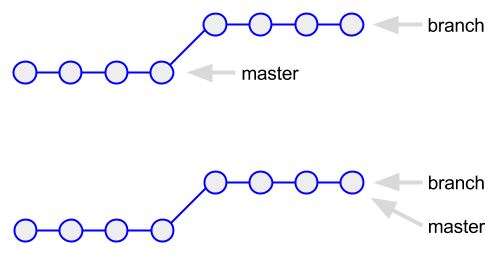
Topologically, the “branch” represents a straight line, extending the last commit on master. Therefore, “merging” the branch is as simple as re-pointing the master reference to that commit.

Squashed Merges

I'll start this section with a rant: one of the things that I hate, when looking at the history of a project, is to see a series of commits like this: “added foo”; “added unit test for foo”; “added another testcase for foo”; “fixed foo to cover new testcase”… Really. I don't care what you did to make “foo” work, I just care that you did it. And if your commits are interspersed with those of the person working on “bar” the evolution of the project becomes almost impossible to follow (I'll return to this in the next section).

Fortunately, this can be resolved easily with a squash merge:

> git merge --squash my-branch
Updating c620754..1791626
Fast-forward
Squash commit -- not updating HEAD
 foo.txt | 100 ++++++++++++++++++++++++++++++++++++++++++++++++++++++++++++++++++++++++++++++++++++++++++++++++++++
 1 file changed, 100 insertions(+)

The “not updting HEAD” part of this message is important: rather than commit the changes, a squash merge leaves them staged and lets you commit (with a summary message) once you've verified the changes. The diagram looks like this:
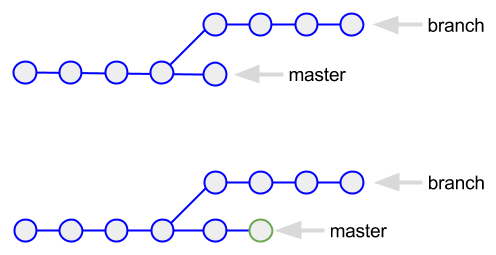
The thing to understand about squashed commits is that they're not actually merges: there's no connection between the branch and master. As a result, “git branch -d my-branch” will fail, warning you that it's an unmerged branch; you need to force deletion by replacing -d with -D.

To wrap up this section: I don't think you need to squash all merges, just the ones that merge a feature onto master or an integration branch. Use normal merges when pulling an integration branch onto master, or when back-porting changes from the integration branch to the development branch (I do, however, recommend squashing back-ports from master to integration).

“Normal” Merges, with or without conflicts

To understand what I dislike about “normal” merges, we need to do one. For this we'll create a completely new repository, one where we'll compile our favorite quotes from Lewis Carroll. We start by creating the file carroll.txt in master; for this section I'll just show changes to the file, not the actual commits.

Jabberwocky

Walrus and Carpenter

In order to work independently, one person will make the changes to Jabberwocky on a branch named “jabber”:

Jabberwocky

Twas brillig, and the slithy toves
Did gire and gimbal in the wabe
All mimsy were the borogroves
And the mome raths outgrabe

Walrus and Carpenter

After that's checked in, someone else modifies the file on master:

Jabberwocky

Walrus and Carpenter

The time has come, the Walrus said,
To talk of many things:
Of shoes, and ships, and sealing wax
Of cabbages, and kings
And why the sea is boiling hot
And whether pigs have wings

Back on branch jabber, someone has found the actual text and corrected mistakes:

Jabberwocky

'Twas brillig, and the slithy toves
Did gyre and gimble in the wabe
All mimsy were the borogoves
And the mome raths outgrabe

Walrus and Carpenter

At this point we have two commits on jabber, and one on master after the branch was made. If you look at the commit log for jabber you see this:

commit 2e68e9b9905b043b06166cf9aa5566d550dbd8ad
Author: Keith Gregory 
Date:   Thu Nov 3 12:59:40 2016 -0400

    fix typos in jabberwocky

commit 5a7d657fb0c322d9d5aca5c7a9d8ef6eb690eaeb
Author: Keith Gregory 
Date:   Thu Nov 3 12:41:35 2016 -0400

    jabberwocky: initial verse

commit e2490ffad2ba7032367f94c0bf16ca44e4b28ee6
Author: Keith Gregory 
Date:   Thu Nov 3 12:39:41 2016 -0400

    initial commit, titles without content

And on master, this is the commit log:

commit 5269b0742e49a3b201ddc0255c50c37b1318aa9c
Author: Keith Gregory 
Date:   Thu Nov 3 12:57:19 2016 -0400

    favorite verse of Walrus

commit e2490ffad2ba7032367f94c0bf16ca44e4b28ee6
Author: Keith Gregory 
Date:   Thu Nov 3 12:39:41 2016 -0400

    initial commit, titles without content

Now the question is: what happens when you merge jabber onto master? In my experience, most people think that the branch commits are added into master based on when they occurred. This is certainly reinforced by the post-merge commit log:

commit 8ba1b90996b4fb67529a2964836f8524a220f2d8
Merge: 5269b07 2e68e9b
Author: Keith Gregory 
Date:   Thu Nov 3 13:03:09 2016 -0400

    Merge branch 'jabber'

commit 2e68e9b9905b043b06166cf9aa5566d550dbd8ad
Author: Keith Gregory 
Date:   Thu Nov 3 12:59:40 2016 -0400

    fix typos in jabberwocky

commit 5269b0742e49a3b201ddc0255c50c37b1318aa9c
Author: Keith Gregory 
Date:   Thu Nov 3 12:57:19 2016 -0400

    favorite verse of Walrus

commit 5a7d657fb0c322d9d5aca5c7a9d8ef6eb690eaeb
Author: Keith Gregory 
Date:   Thu Nov 3 12:41:35 2016 -0400

    jabberwocky: initial verse

commit e2490ffad2ba7032367f94c0bf16ca44e4b28ee6
Author: Keith Gregory 
Date:   Thu Nov 3 12:39:41 2016 -0400

    initial commit, titles without content

But take a closer look at those commit hashes, and compare them to the hashes from the separate branches. They're the same, which means that the commits are unchanged. In fact, git log walks the parent references of both branches, making it appear that commits are on one branch when they aren't. The diagram actually looks like this (yes, I know, there are two commits too many):
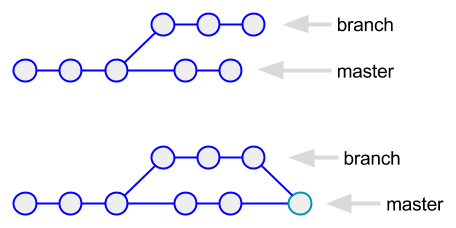
The merge created a new commit, which has two parent references. It also created a new blob to hold the combined file, along with a modified tree. If we run cat-file on the merge commit, this is what we get:

tree 589187777a672868e50aefc491ed640125d1e3ed
parent 5269b0742e49a3b201ddc0255c50c37b1318aa9c
parent 2e68e9b9905b043b06166cf9aa5566d550dbd8ad
author Keith Gregory  1478192589 -0400
committer Keith Gregory  1478192589 -0400

Merge branch 'jabber'

So, what does it mean that git log produces the illusion of a series of merged commits? Consider what happens when you check out one of the commits in the list, for example 2e68e9b9.

This was a commit that was made on the branch. If you check out that commit and look at the commit log from that point, you'll see that commit 5269b074 no longer appears. It was made on master, in a completely different chain of commits.

In a complex series of merges (say, multiple development branches onto an integration branch, and several integration branches onto a feature branch) you can completely lose track of where and why a change was made. If you try to diff your way through the commit history, you'll find that the code changes dramatically between commits, and appears to flip-flop; you're simply seeing the code state on different branches.

Wrapping up: how safe is SHA-1?

“Everybody knows” that SHA-1 is a “broken” hash, so why is it the basis for storing objects in Git?

The answer to that question has two parts. The first is that SHA-1 is “broken” in terms of an attacker being able to create a false message that has the same SHA-1 hash as a real message: it takes fewer than the expected number of attempts (although still a lot!). This is problem if the message that you're hashing is involved in validating a server certificate. It's not a problem in the case of Git, because at worst the attacher would be able to replace a single object — you might lose one file within a commit, or need to manually rebuild a directory.

That's an active attacker, but what about accidental collisions: let's say that you have a commit with a particular hash, and it just so happens that you create a blob with the same hash. It could happen, although the chances are vanishingly small. And if it does happen, Git ignores the later file.

So don't worry, be happy, and remember to squash features from development branches.

Saturday, April 2, 2016

Practical Git: Recovering Orphaned Commits

> git reset --hard 5b7830c203e3f581c1d23d9f945478b9f94979da
HEAD is now at 5b7830c third revision

Some time later, after the window showing the log has been closed …
“Oh s**t, that was the wrong revision!”

If you've followed my advice, you have a backup of your Git repository and recovery is a simple matter of pulling the latest changes. But maybe you haven't pushed recently. Or maybe this is a scratch project that you never bothered to copy remotely.

The commits are still in your local repository, but they're orphaned: no branch head points to them, so there's no easy way to access them. But with a little digging, you can find the commit(s) that you wanted to preserve, and create a branch that contains them. You just need to know how Git stores commits.

The short form is that Git doesn't store “commits” per se, it stores objects. A commit is simply one type of object (the others are trees, which contains directory listings, and blobs, which contain files). This seems like a nit-picking differentiation, but it means that you have to hunt for your commits within a possibly large directory of objects.

That directory is .git/objects, which resides under the root of your project. If you look inside this directory, you'll see a bunch of sub-directories:

ls -l .git/objects
total 68
drwxrwxr-x 2 kgregory kgregory 4096 Apr  2 08:16 04
drwxrwxr-x 2 kgregory kgregory 4096 Apr  2 08:16 0d
drwxrwxr-x 2 kgregory kgregory 4096 Apr  2 08:16 21
…

And if you look inside one of these sub-directories, you'll see a bunch of files:

ls -l .git/objects/04
total 4
-r--r--r-- 1 kgregory kgregory 166 Apr  2 08:16 fbee2d3610317180c3f15b0d122e24f39fa82c

Well, in this case not so many files, because this is an example project with just four commits. But in a real project, you may have hundreds, if not thousands, of files in each directory. So you need some way to winnow them down. On Linux, the find command will let you see files that were created within a time range; in this case I look for everything in the last hour, because those are the commits that I deleted:

find .git/objects/ -cmin -60 -type f -ls
796801    4 -r--r--r--   1 kgregory kgregory       31 Apr  2 08:16 .git/objects/ce/06f54a5a2032d1fb605284e7217fca9e7a5073
796811    4 -r--r--r--   1 kgregory kgregory      167 Apr  2 08:16 .git/objects/66/82d6271a5416ed0a325cbafc34b32bbf893976
796803    4 -r--r--r--   1 kgregory kgregory       56 Apr  2 08:16 .git/objects/fa/b61137a51c608783b342d6e1912f45ae24c775
…

At this point it should be clear that these files are named for SHA-1 hashes. The two-level directory structure is designed so that you can store large numbers of files efficiently: in a project with 10,000 commits there will be 256 sub-directories, each of which will contain an average of 39 commits. Unfortunately for us, the full SHA1 hash consists of the directory name concatenated to the filename. So we need to apply some sed:

find .git/objects/ -cmin -60 -type f | sed -e 's/.*ects.//' | sed -e 's/\///'
ce06f54a5a2032d1fb605284e7217fca9e7a5073
6682d6271a5416ed0a325cbafc34b32bbf893976
fab61137a51c608783b342d6e1912f45ae24c775
…

The reason that we need the hashes — versus simply grepping the files — is that the files are compressed. However, git provides the cat-file tool to help us:

git cat-file -p 6682d6271a5416ed0a325cbafc34b32bbf893976
tree ec6da2f24b113700e2d64b773b4d2c9149451bfd
parent 5b7830c203e3f581c1d23d9f945478b9f94979da
author Keith Gregory  1459599418 -0400
committer Keith Gregory  1459599418 -0400

fourth revision

At this point, finding the commits that you care about is a matter of passing the list of hashes into cat-file, and grepping for text that identifies your commit. Looking for the actual commit message is chancy (especially if it might overlap with filenames or file contents), so I generally just look for files that contain “committer”:

for f in `find .git/objects/ -cmin -60 -type f | sed -e 's/.*ects.//' | sed -e 's/\///'`
do git cat-file -p $f | grep committer && echo $f
done
committer Keith Gregory  1459599387 -0400
275a303e89187e0ccffef18fd8f8d42103b33618
committer Keith Gregory  1459599402 -0400
5b7830c203e3f581c1d23d9f945478b9f94979da
committer Keith Gregory  1459599418 -0400
6682d6271a5416ed0a325cbafc34b32bbf893976
committer Keith Gregory  1459599374 -0400
0dc65221c3e1d4991fc9bf9471d5dc6e372c3885
committer Keith Gregory  1459599395 -0400
04fbee2d3610317180c3f15b0d122e24f39fa82c

The next-to-last field on each line is the timestamp of the commit; the highest number will be the last commit. At this point, you can recover your commits:

git checkout -b my_recovered_commits 6682d6271a5416ed0a325cbafc34b32bbf893976
Switched to a new branch 'my_recovered_commits'

> git log
commit 6682d6271a5416ed0a325cbafc34b32bbf893976
Author: Keith Gregory 
Date:   Sat Apr 2 08:16:58 2016 -0400

    fourth revision

commit 5b7830c203e3f581c1d23d9f945478b9f94979da
Author: Keith Gregory 
Date:   Sat Apr 2 08:16:42 2016 -0400

    third revision
…

Tuesday, February 14, 2012

A Bash Function to Create Git Branches

I'm currently doing some work on our corporate website, working through a long list of generally minor issues and learning Rails in the process. I'm still at the point where I want to code-review every change, and I also have the philosophy that every issue should be independent. So I'm creating a lot of branches.

After accidentally creating a couple of those branches from other branches rather than master, I added the following function to my .bashrc:

function branch { 
    if git branch | grep -q " $1\$" ; then
        git checkout $1
    else
        git checkout master
        git checkout -b $1
        git push origin $1
    fi ; }

Invoke this as branch branch_name. If there's already a branch with that name, it runs git checkout to switch to that branch — which will fail if you have unstashed changes on the current branch.

Otherwise, it switches to master and then creates the new branch. In both the local and origin repository (we use GitHub at work, so everyone on a project has his or her own fork). If you don't have a similar setup, delete that push — or change it to point to a backup repository.